Web Portal
Requests through Web
Customer Experience & Success
Microsoft CE&S BI supports more than 20,000 employees, but the internal request process was inefficient — weighed down by jargon-heavy explanations, a complicated process, and an inconsistent input order. This project set out to design a workflow that lets people report and track issues seamlessly across desktop, mobile, and Teams, without breaking their existing workflow


Background
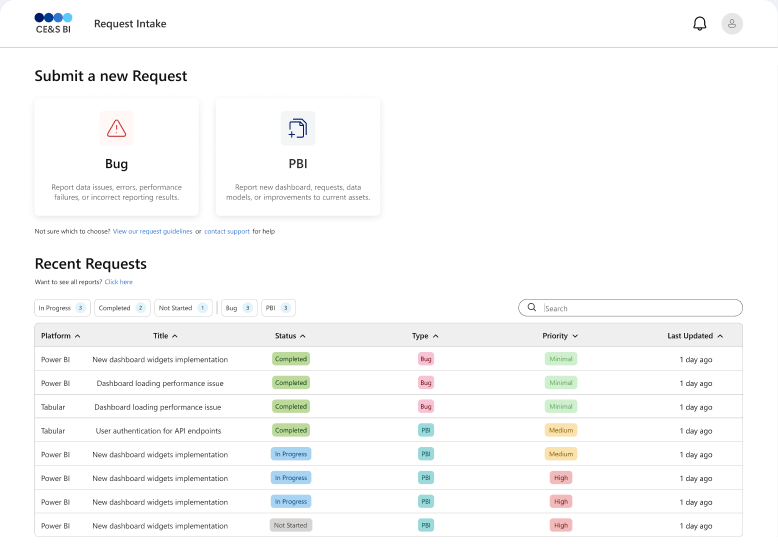
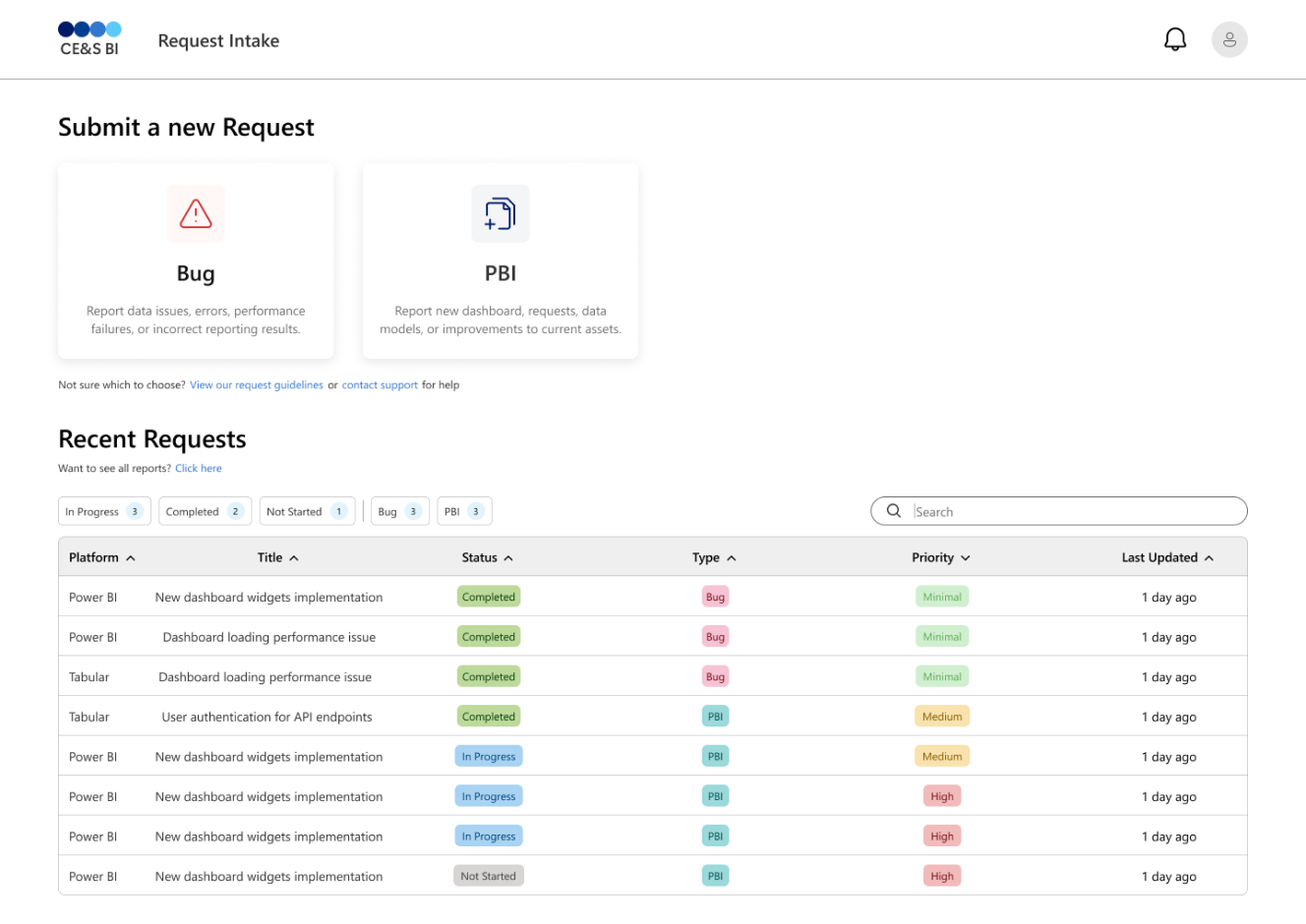
Microsoft CE&S BI is an internal team that manages a wide range of data reports and business requests. Employees used the CE&S BI Request Intake platform to report bugs they ran into, or to request new features (PBI).
But even though it was a simple reporting system, jargon-heavy explanations, a complicated process, and an inconsistent input order made it difficult to use.
Rather than simply redesigning the form, we focused on building an experience that let employees submit and track requests naturally, without breaking their workflow.
Project Goal
This project was not simply about improving a web form;
It aimed to create an Omni-Channel Experience that connects naturally across Microsoft’s various work environments.
Through this, I redesigned the system for a consistent request experience across platforms.

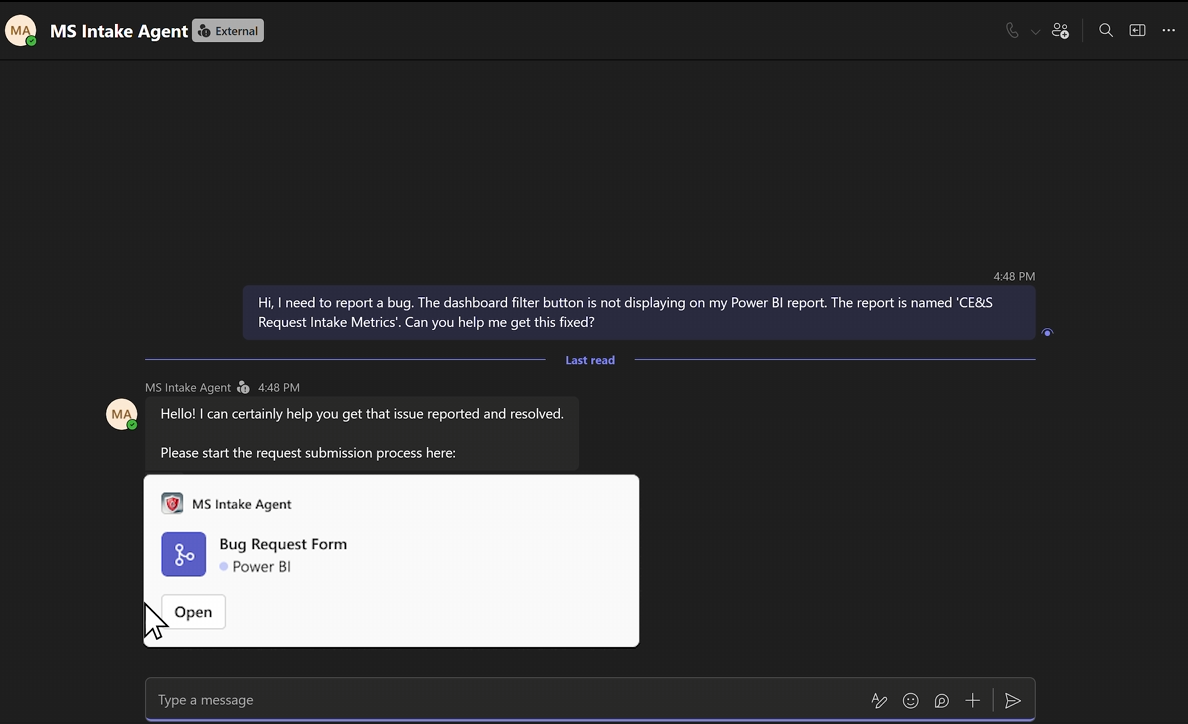
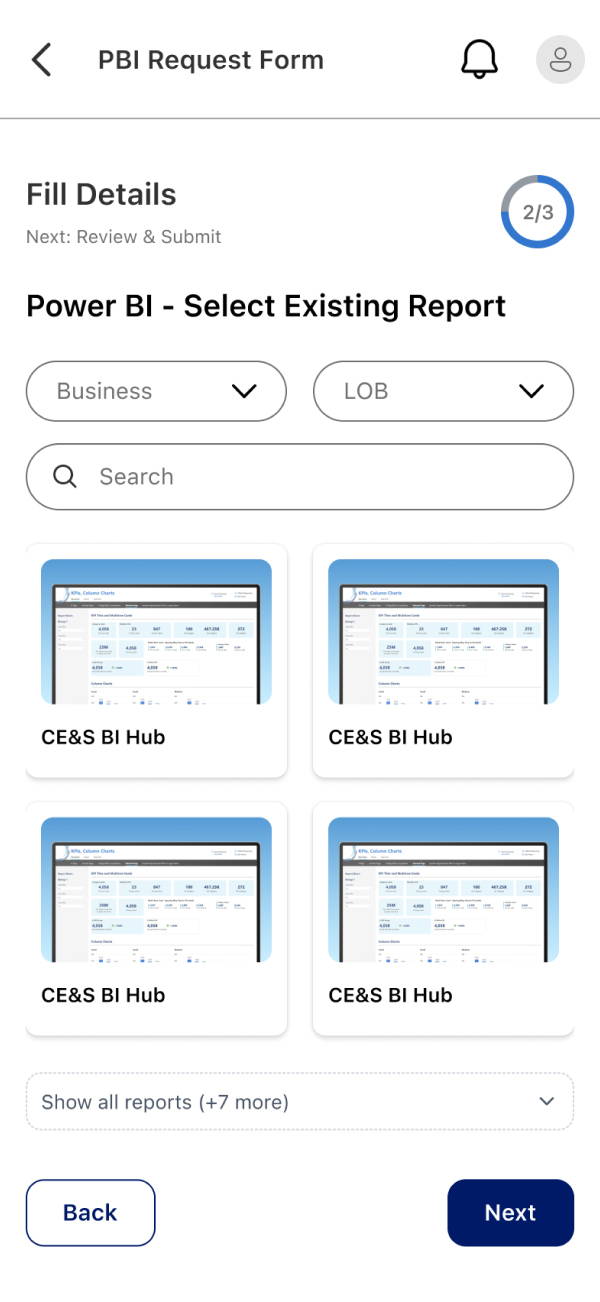
Requests through Web

Requests through Mobile

Requests and manage
within Teams
Current Experience
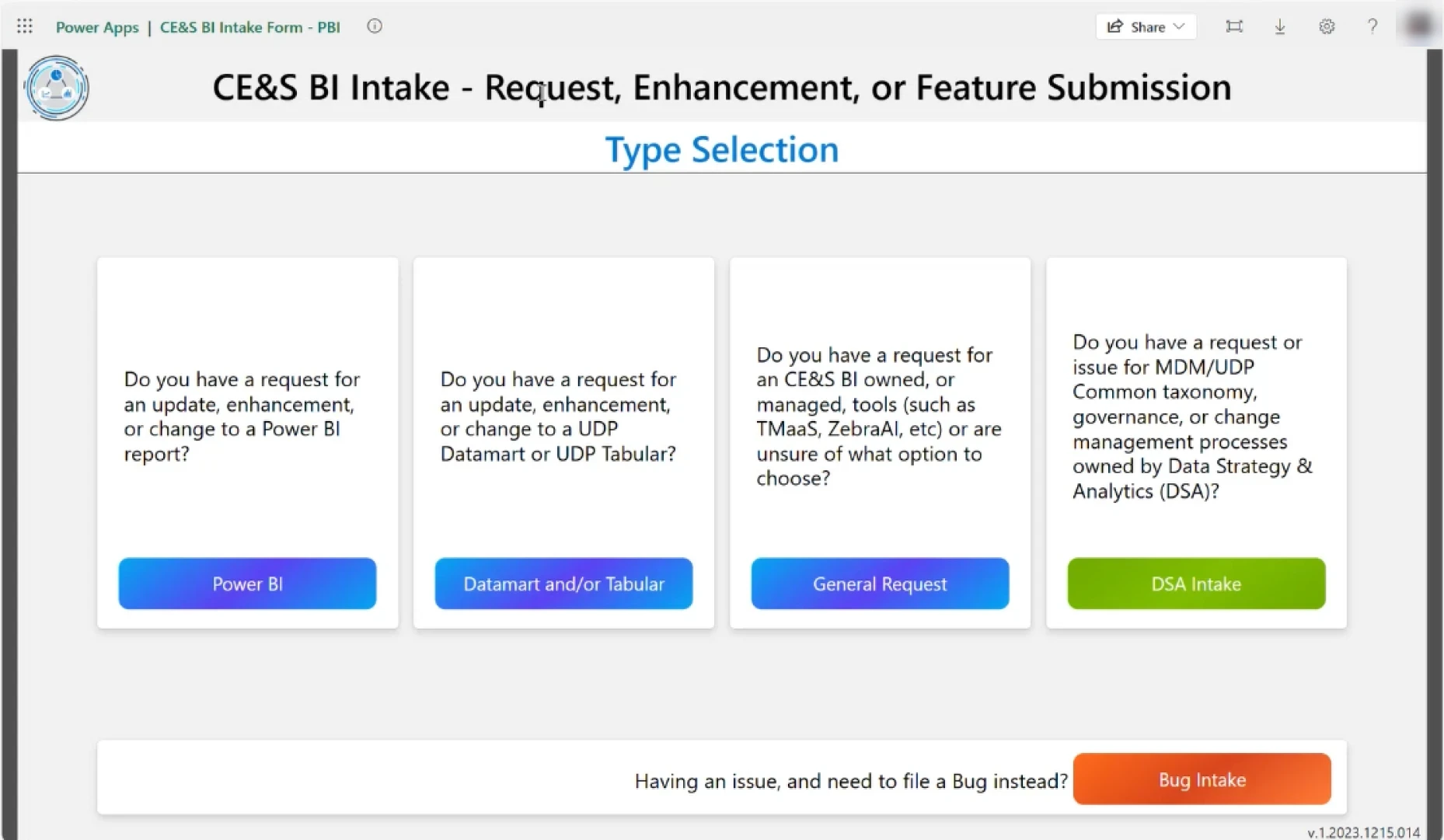
Despite being a simple reporting system, it was difficult to use due to complex information, technical jargon, and a lack of follow-up tracking.
Unfamiliar acronyms and terminology made the form difficult to understand and led to missing information. Users had to first figure out what the terms meant before knowing what to enter.
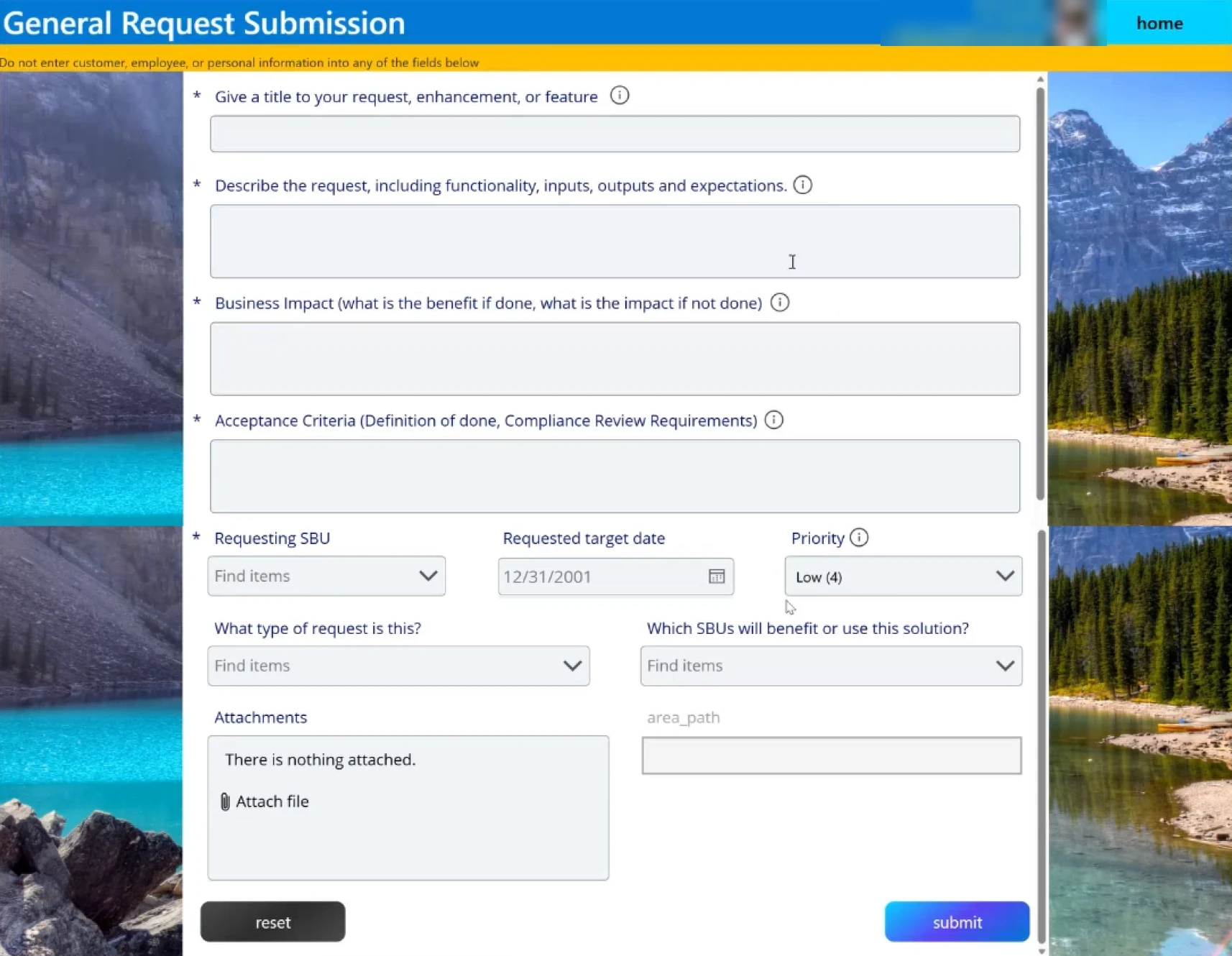
Related information was scattered instead of grouped together, disrupting the input flow. As a result, many users skipped most fields and entered everything in the Description section.
The two-column layout made the form feel cluttered and reduced readability. In longer forms, users struggled to know where to start, moved their eyes more, and lost sight of information priority.
01Type selection
02General request form
Literature Review
Research showed that productivity depends not just on data integration, but also on easy-to-use systems. However, the current system’s complex information and terminology made fast, simple workflows difficult.
Users preferred clear, conversational language over expert terminology. Replacing internal jargon with simple business language made reporting issues much easier.
Showing only what’s needed at each step made complex forms easier to complete. Users worked faster by focusing on one action at a time.
Users want to track their requests in real time. Clear status updates and progress feedback build trust in the system and reduce unnecessary follow-up questions.
Competitive Analysis





I researched enterprise ticketing, task management tools, and internal templates to reduce cognitive load and improve request tracking in the CE&S BI Intake system.
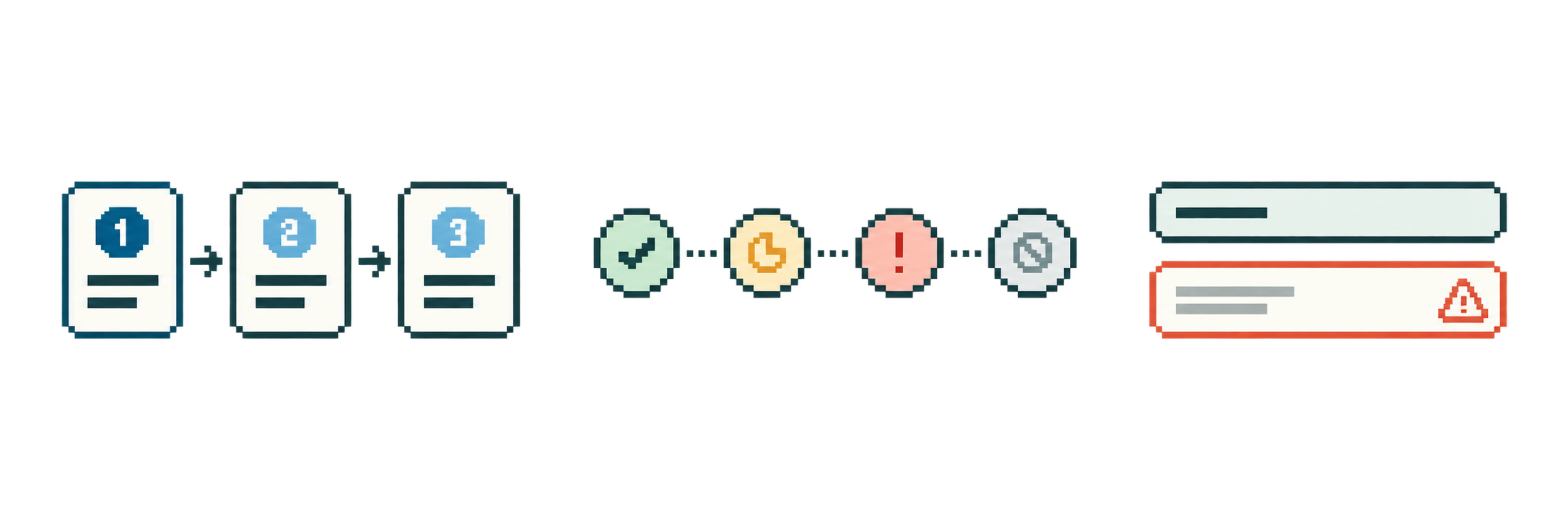
Grouped related questions and organized the input flow around the user’s natural request process.
Used green, yellow, and red colors with status icons to make request status easy to understand.
Used error messages and helper text to guide users and prevent input errors.
INTERVIEW
I interviewed Microsoft employees who submit data requests to understand where they faced the most difficulty in the current system.
 EMPLOYEE A
“When there are too many fields, I don’t know where to start.”
Users wanted real examples and guidance, not repetitive labels.
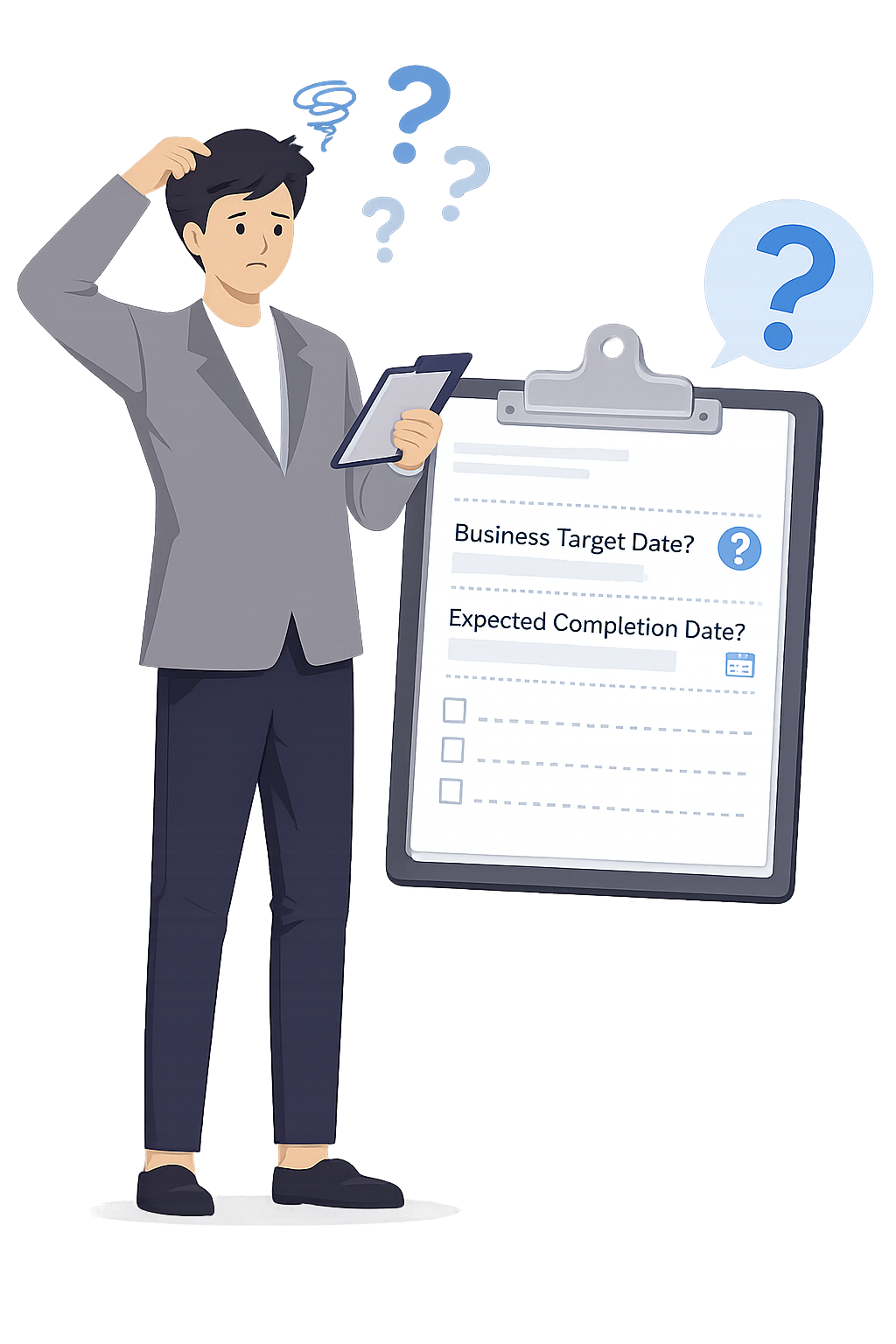 EMPLOYEE B
“Business Target Date vs. Expected Completion Date is confusing.”
Users struggled with understanding what information they needed to enter than with the actual input process.
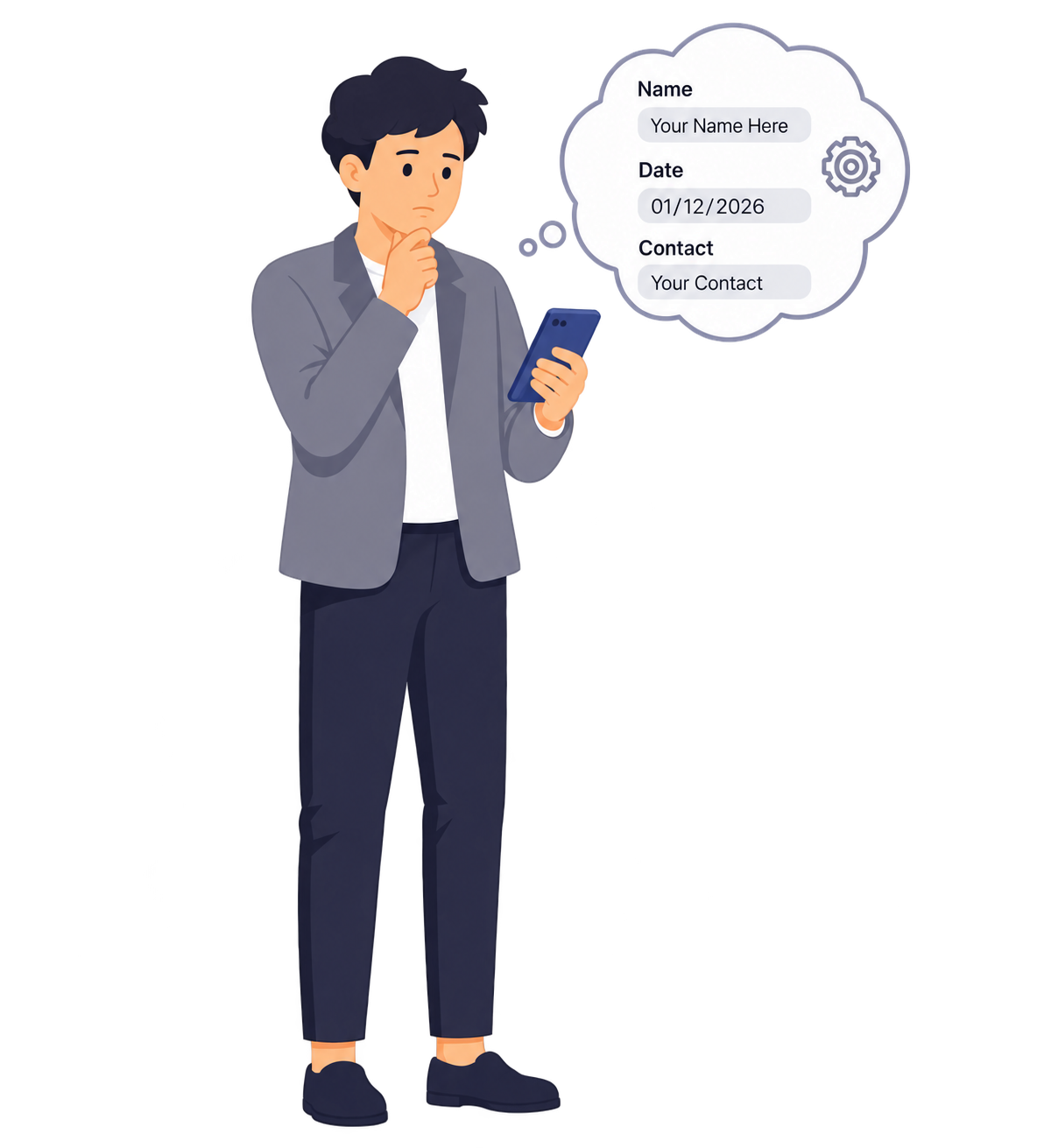 EMPLOYEE B
“The placeholder just repeated the label, so it wasn’t very helpful.”
Users wanted real input examples and guidance, not repeated labels.
 EMPLOYEE A
“I’m not sure if my attachment was submitted successfully.”
Users wanted confirmation that their information was successfully delivered after submission.
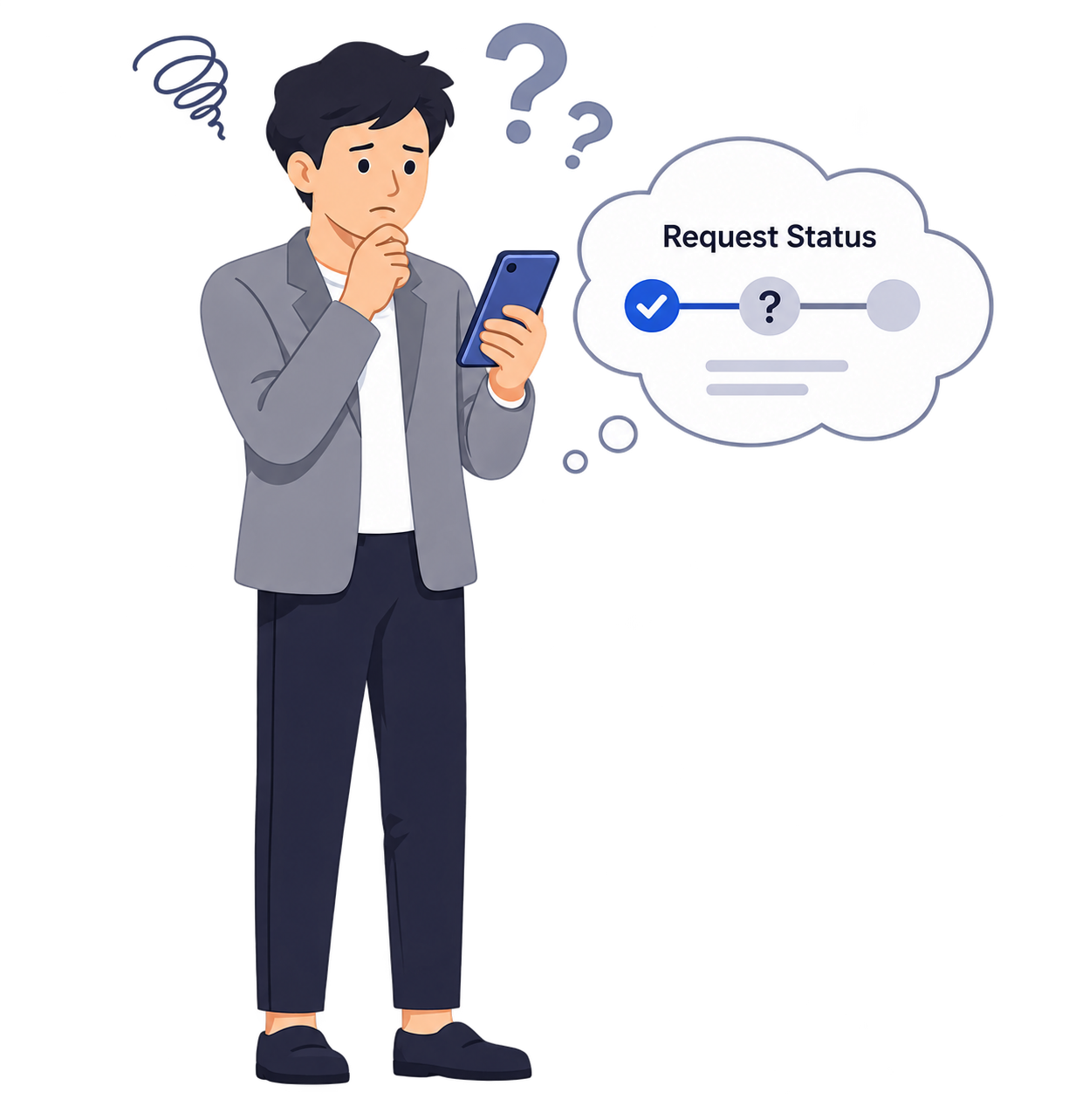 EMPLOYEE B
“After submitting, it’s hard to keep track of the status.”
Users wanted an easy way to track progress after submitting a request.
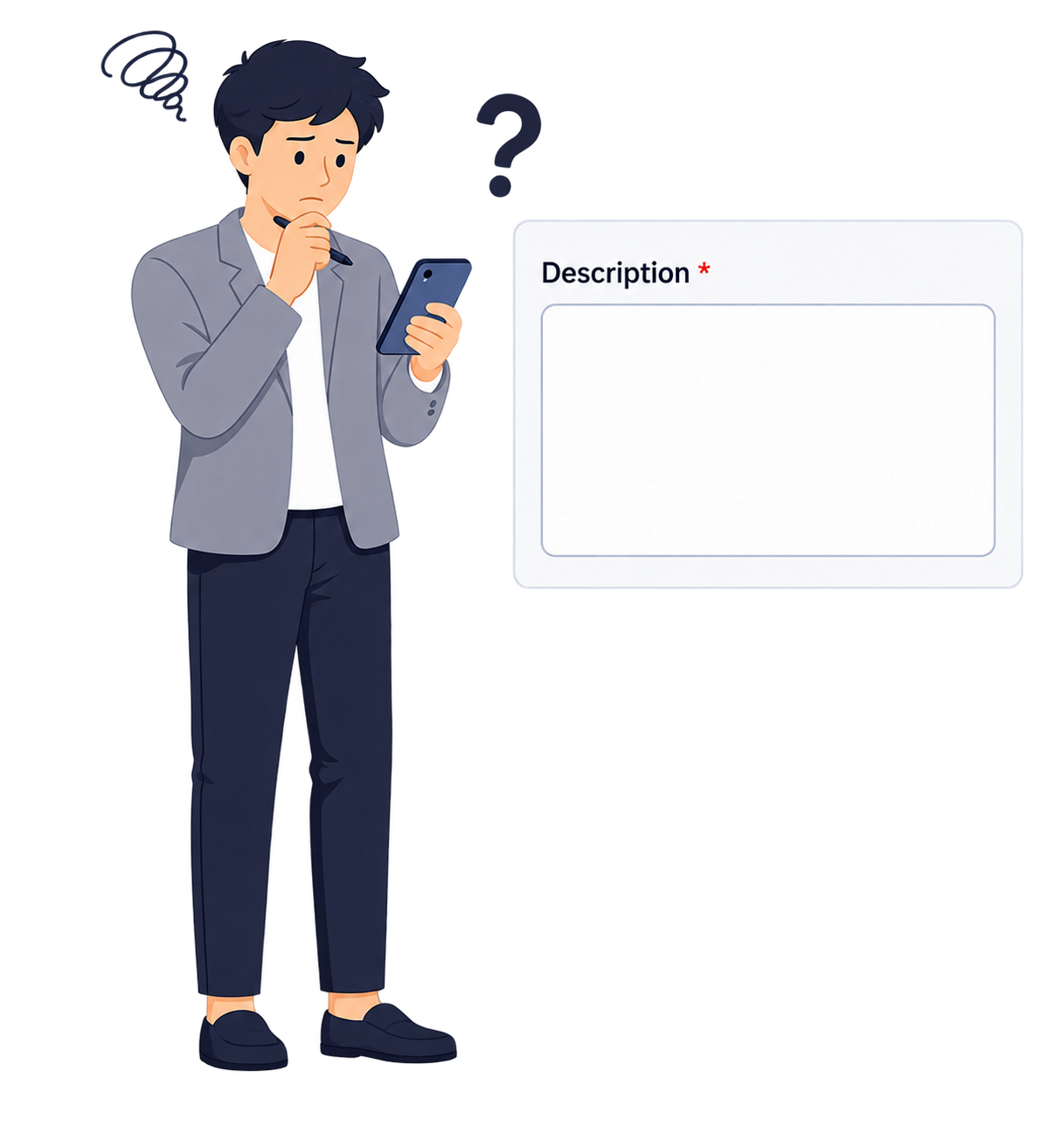 EMPLOYEE A
“I end up putting most of the information in the Description field.”
Users preferred a natural input flow over a complex, fragmented form structure.
Direction
Based on our research and interviews, we defined three key directions for improving the service.
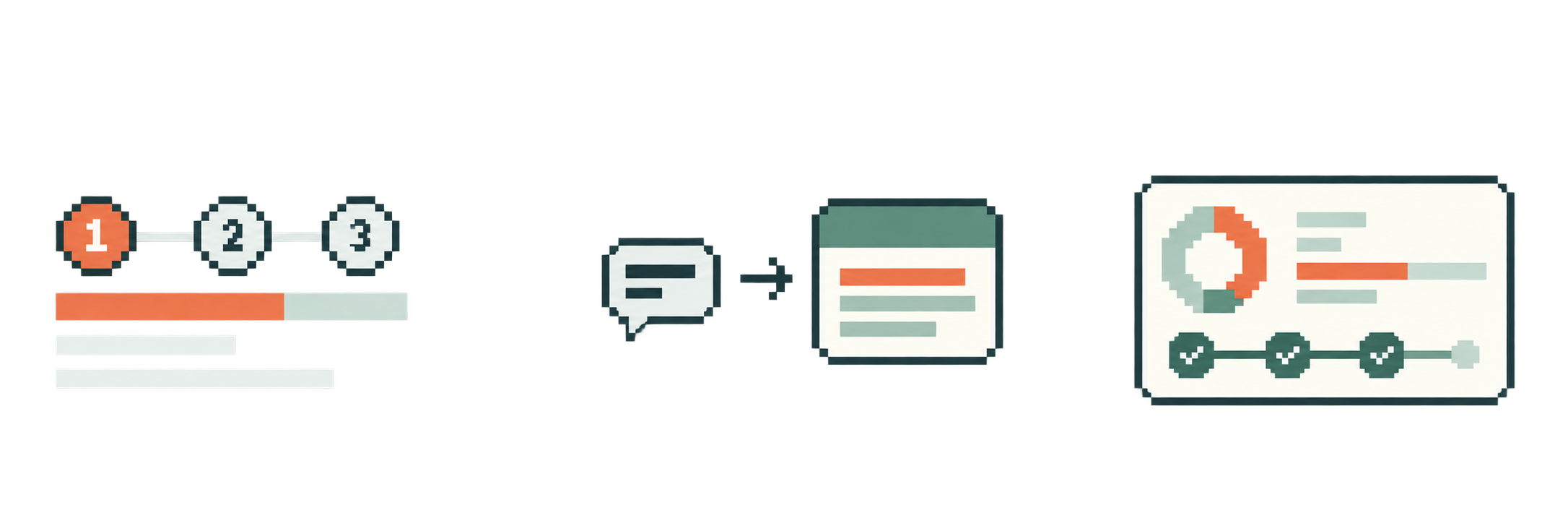
Designed a step-by-step flow so users can focus only on the questions they need at each stage.
Replaced internal jargon with clear language and helpful examples anyone can understand.
Users can now track all request progress in one dashboard after submission.
AI Prototyping
To quickly validate user feedback within business goals and a limited timeline, we used Figma Make AI.
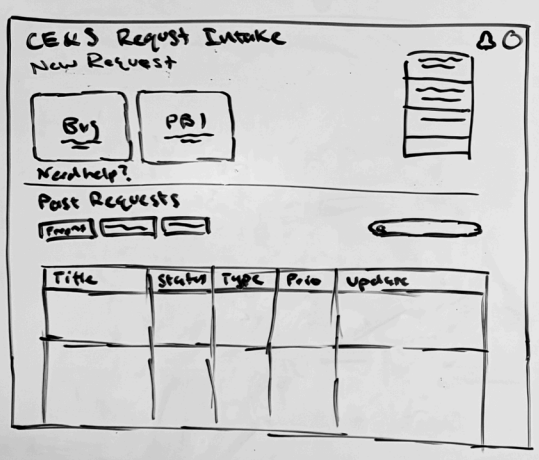
Quickly visualize ideas and organize the structure and flow.
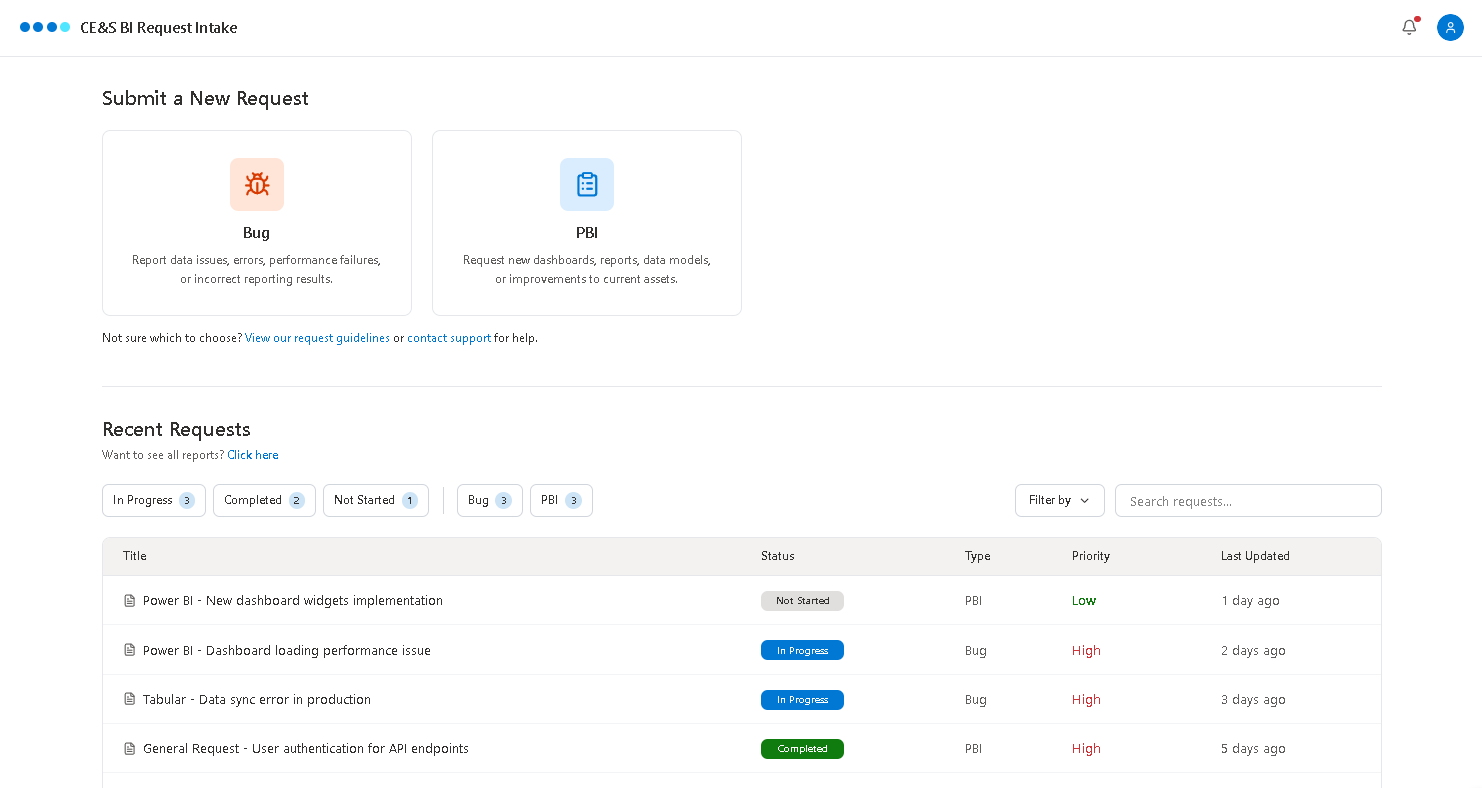
Quickly create an initial prototype with AI-generated screens.
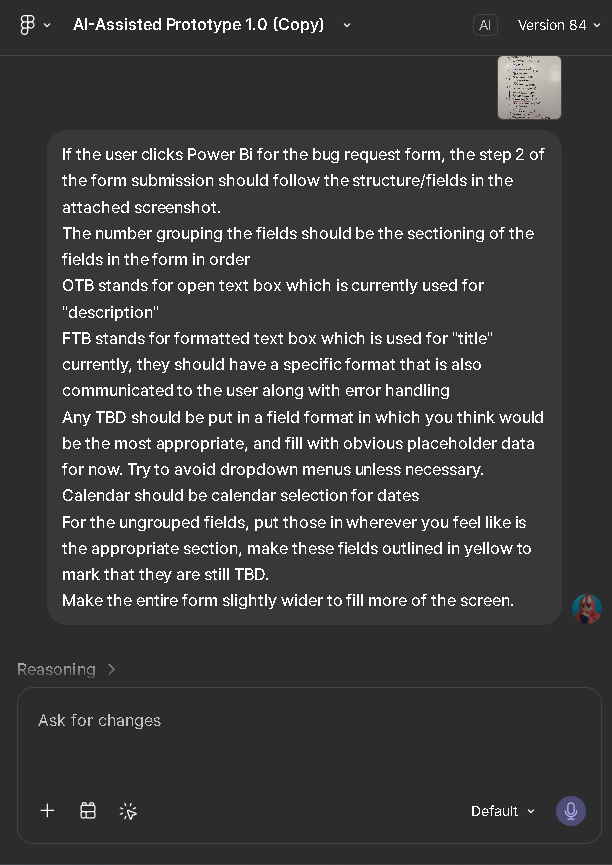
Quickly refine content and design through prompts.

Gather user feedback to identify areas for improvement.
Iteratively refine the prototype based on feedback.
Grid System
Using a 12-column grid with consistent margins and gutters ensures alignment and spacing across different screens.

The 12-column grid easily divides into 2, 3, 4, or 6 columns, making it flexible for cards, forms, and table layouts.

Using columns and gutters keeps alignment, spacing, and visual balance consistent across the interface.

The same structure scales across devices, making design and development collaboration easier.
Color Palette
CE&S BI uses the Microsoft Fluent Color System and Windows UI colors to maintain brand identity and deliver a consistent experience across environments.
01
Primary Colors
The primary brand color used most frequently.
#004399
900
#004FA6
800
#005BB3
700
#0068C0
600
3376CD
500
#5B8FE6
400
#7DAAFF
300
#9DC5FF
200
#BCE1FF
100
#DCFDFF
50
500
3376CD
#006084
900
#0079A0
800
#0A93BD
700
#3CAEDB
600
5CC9FA
500
#76D6FF
400
#8EE3FF
300
#A4F1FF
200
#B9FEFF
100
#CDFFFF
50
500
5CC9FA
#000036
900
#000E40
800
#001B4B
700
#002657
600
123262
500
#263D6B
400
#364875
300
#44547F
200
#536088
100
#616C92
50
500
123262
02
Secondary Colors
Used for secondary status indicators, charts, and tags.
Red
#BF4C47
Deep Blue
#2E335D
palePurple
#8083D4
#C9CAED
paleBlue
#BCD2EE
#CEEEEF
#E2F4FB
Pink
#E34A7D
#ED88A9
#F6C3D4
#FCEDF2
paleGreen
#BAD14A
#D1E188
#E8F0C3
#F8FAED
paleOrange
#F1B462
#F6CD97
#FAE6CB
#FEF7EF
03
Neutral Colors
Used for backgrounds, text, and borders.
#000000
#242424
#424242
#616161
#707070
#BDBDBD
#D2D2D2
#E0E0E0
#EBEBEB
#F0F0F0
#F6F6F6
#FFFFFF
#001A68
Typography
Based on Microsoft Fluent Typography, we defined platform-optimized type ramps for Web, iOS, and Android to clearly communicate information hierarchy.
 WebSegoe UI (Windows/Web)
 AndroidRoboto (Android)
 iOSSF Pro (MacOS / iOS)
Smallest
Largest
Web
Caption 1
Body 1
Segoe UI Regular
Segoe UI Bold Small
Segoe UI Semibold Small
Segoe UI Regular Small
Segoe UI Semibold
Segoe UI Bold
Segoe UI Semibold Display
68px / 92px
40px / 52px
32px / 40px
28px / 36px
24px / 32px
20px / 26px
16px / 22px
16px / 22px
14px / 20px
14px / 20px
14px / 20px
12px / 16px
12px / 16px
12px / 16px
Caption 1
Caption 2 Strong
Caption 2
Segoe UI Semibold Small
10px / 14px
10px / 14px
Segoe UI Regular Small
12px / 16px
Segoe UI Semibold Display
Segoe UI Semibold Display
Segoe UI Semibold Display
Segoe UI Semibold Display
Segoe UI Semibold Display
Segoe UI Bold Display
Segoe UI Semibold Display
Subtitle 1
Title 3
Title 2
Title 1
Title Large
Display
Subtitle 2
Subtitle 2 Stronger
Body 1 Strong
Body 1 Stronger
Caption 1 Strong
Caption 1 Stronger
Android
Style
Font
Size / Line-height
Roboto Regular
12sp / 16sp
Caption 2
Caption 1
Roboto Regular
13sp / 18sp
Caption 1 Strong
Roboto Medium
13sp / 18sp
Body 2
Roboto Regular
14sp / 20sp
Body 2 Strong
Roboto Medium
14sp / 20sp
Body 1
Roboto Regular
16sp / 24sp
Body 1 Strong
Roboto Semibold
16sp / 24sp
Title 3
Roboto Medium
18sp / 24sp
Title 2
Roboto Medium
20sp / 24sp
Title 1
Roboto Bold
24sp / 32sp
Large Title
34sp / 44sp
Roboto Regular
Display
Roboto Regular
60sp / 72sp
IOS
Style
Font
Size / Line-height
SF Pro Regular
12pt / 16pt
Caption 2
Caption 1
SF Pro Regular
13pt / 18pt
Caption 1 Strong
SF Pro Semibold
13pt / 18pt
Body 2
SF Pro Regular
15pt / 20pt
Body 2 Strong
SF Pro Semibold
15pt / 20pt
Body 1
SF Pro Regular
17pt / 22pt
Body 1 Strong
SF Pro Semibold
17pt / 22pt
Title 3
SF Pro Semibold
20pt / 25pt
Title 2
SF Pro Semibold
22pt / 28pt
Title 1
SF Pro Bold
28pt / 34pt
Large Title
34pt / 41pt
SF Pro Bold
Display
SF Pro Bold
60pt / 70pt
Final Design
Desktop Version
This is the CE&S BI Intake desktop flow, from creating and submitting a request to tracking its current status.
Key Learnings
“Through the Microsoft project, I learned to understand both sides of a workflow before simplifying it. Employees needed clear questions and guidance, while DevOps teams needed specific information to act on requests. Understanding those needs helped me decide what to ask, when to ask it, and where to provide support. I also learned that AI-assisted prototyping could create more time for testing and iteration, but I still needed to question its output and make decisions based on user feedback. In future projects, I’ll apply both lessons: understand the workflow first, then use AI to help me test ideas faster.”